

Before you flash: Flashing firmware will erase all data on your device. Back up contacts, photos, and apps before proceeding. FlashGuideHub is not responsible for any damage caused by following this guide.
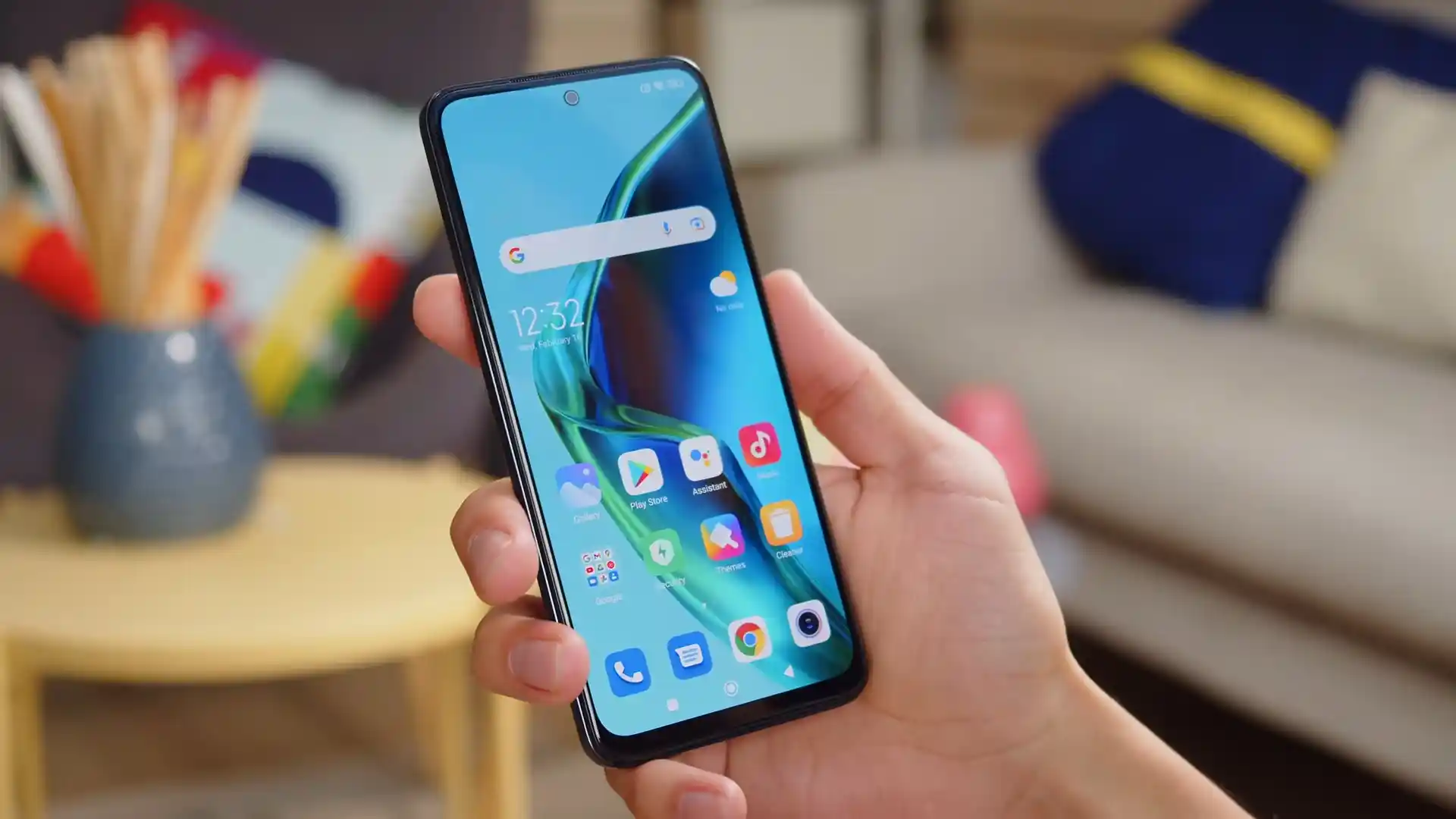
About the Xiaomi Redmi Note 11 (spes / spesn)
The Xiaomi Redmi Note 11 (spes / spesn), launched in January 2022, is built on Qualcomm's Qualcomm Snapdragon 680 4G SM6225 (6nm TSMC) platform with an Adreno 610 GPU, 6.43-inch 90Hz AMOLED display, and a 5,000 mAh battery with 33W fast charging.
This procedural guide details how to restore official stock HyperOS 1.0 firmware, flash custom recoveries (OrangeFox R12.0 and TWRP), and resolve Virtual A/B boot ramdisk installation challenges on both non-NFC (spes) and NFC (spesn) variants.
Which Flash Mode Should You Use?
Fastboot Mode (Bootloader)
Used for full factory firmware flashing with Mi Flash Tool and boot image installation.
Mi Assistant Recovery Mode
Used for flashing signed official recovery OTA ZIPs on devices with locked or unlocked bootloaders.
Custom Recovery (OrangeFox / TWRP)
Used for installing custom ROMs (Xiaomi.eu), Magisk root, and performing full partition backups.
Prerequisites & System Setup for Redmi Note 11
A computer running Windows 10 or 11 with Qualcomm USB drivers and Android SDK Platform-Tools installed.
Use an authentic USB Type-C cable connected directly to a rear motherboard USB 2.0 port to prevent connection drops during partition flashing.
Ensure your handset holds at least 50% charge to safely complete the 5 to 8 minute installation process.
Official Fastboot flashing requires that your Xiaomi account has successfully completed the bootloader unlock process via Mi Unlock.
Step-by-Step Mi Flash & Fastboot Walkthrough
5-step quick reference for the Xiaomi Redmi Note 11 (spes / spesn). Need visuals or troubleshooting help? The full Mi Flash Tool guide covers everything in detail.
-
Unlock bootloader with Mi Unlock, or use Mi Assistant Recovery mode if locked
-
Extract spesn_eea_global_images_OS1.0.11.0.TGKEUXM_20250324.0000.00_13.0_eea_aa692107e0.tgz twice to C:\spes_fw\
-
Install Google Platform-Tools and Qualcomm USB drivers on 64-bit Windows
-
Boot into Fastboot (Volume Down + Power) and confirm product codename reports "spes" or "spesn"
-
Select C:\spes_fw\ in Mi Flash Tool, choose "clean all" (flash_all.bat), and click Flash
Fastboot Script Operations & Partition Layout
Official Fastboot packages for Redmi Note 11 utilize batch flashing scripts (flash_all.bat) to transfer images to the device partitions via the Google Fastboot protocol.
flash_all.bat
Inside the extracted Fastboot folder, you will find three primary batch scripts: flash_all.bat (performs a clean factory flash by wiping userdata and flashing all system partitions), flash_all_except_storage.bat (retains user files while rewriting system images), and flash_all_lock.bat (flashes system partitions and locks the bootloader). For repairs and unbricking, always use flash_all.bat.
Always choose flash_all.bat ("clean all") in Mi Flash Tool. Never select flash_all_lock.bat if flashing cross-regional software, as relocking with an incompatible firmware branch will result in a bootloader security lock.
Tested Firmware & Custom Recovery Packages
The following tested packages include official European and Global HyperOS 1.0 Fastboot releases as well as the recommended Xiaomi.eu hybrid ROM.
| Version | Region | Android Version | Size | MD5 | Download |
|---|---|---|---|---|---|
OS1.0.11.0.TGKEUXM |
Europe / UK EEA (NFC — spesn) | Android 13.0, Mar 2025 | 5.37 GB | aa692107e0ae34351fa6daf4eb1ce6ba |
⬇️ Download |
OS1.0.8.0.TGCMIXM |
Global (Non-NFC — spes) | Android 13.0, Sep 2024 | 5.81 GB | 2ba81a8074bbe8a9999c8aff5ade62c4 |
⬇️ Download |
OS1.0.11.0.TGKMIXM (Xiaomi.eu) |
Xiaomi.eu Hybrid (spes / spesn) | Android 13.0, May 2025 | 3.74 GB | — | ⬇️ Download |
Need additional regional releases, Indian/Turkish builds, or historical packages? Browse the complete 20-package Redmi Note 11 archive on AndroidFirmwareFile.com →
Snapdragon 680 Platform & Boot Ramdisk Notes
The Redmi Note 11 utilizes Android Virtual A/B partitioning with dynamic partitions inside the super block. Crucially, there is no physical /recovery partition on the device; the recovery ramdisk is housed within the kernel boot.img partition.
Custom Recovery Installation Walkthrough
To boot custom recovery without overwriting the stock boot image, execute:
fastboot boot twrp-3.7.1_12-0-spes-PTX64.imgOnce booted into the recovery environment, install persistent OrangeFox recovery by navigating to Advanced > Flash Current OrangeFox or by flashing the OrangeFox-R12.0-spes.zip installer package. Alternatively, you can flash the recovery directly to the boot partition:
fastboot flash boot OrangeFox-R12.0-spes.imgDisabling Android Verified Boot (AVB)
When modifying system or boot partitions, disable AVB verification flags to prevent verification loops on reboot:
fastboot --disable-verity --disable-verification flash vbmeta vbmeta.imgTroubleshooting Redmi Note 11 Flashing & Fastboot Errors
Fastboot Status: FAILED (remote: 'Partition not found') on Recovery Write
Occurs when attempting to run "fastboot flash recovery recovery.img". The Redmi Note 11 does not have a dedicated recovery partition; its recovery ramdisk is integrated inside boot.img. Use "fastboot boot twrp-3.7.1_12-0-spes-PTX64.img" to boot temporarily, or flash directly to the boot partition using "fastboot flash boot recovery.img".
Mi Flash Dialog: Script Path Not Found or Directory Syntax Error
Triggered when the downloaded archive has only been unpacked once (leaving an inner .tar file), when the folder path contains spaces (such as "New Folder"), or when Mi Flash is pointed inside the "images" subfolder instead of the parent folder containing flash_all.bat. Extract twice using 7-Zip directly to C:\spes_fw\.
Bootloader Lockout: "This MIUI version can't be installed on this device"
Caused by selecting "clean all and lock" (flash_all_lock.bat) in Mi Flash Tool while flashing a firmware region that does not match the device's hardware origin (e.g. flashing Global firmware onto a Chinese or regional unit and locking), or flashing non-NFC spes firmware on spesn. Always select "clean all" to avoid relocking the bootloader on cross-region software.
OrangeFox Decryption: "Unable to decrypt FBE" or Corrupted Storage Prompt
Caused by attempting to read Android 13 File-Based Encryption (FBEv2) using an older recovery build that lacks modern decryption key support. Use OrangeFox R12.0 (OrangeFox-R12.0-spes.zip), or select "Wipe" -> "Format Data" (typing "yes") in recovery to initialize clean storage before installing a new ROM.
Solutions for partition write failures, EDL challenge prompts, and boot ramdisk recovery installation errors. Troubleshooting Directory →
Technical Flashing & Recovery Troubleshooting Q&A
Redmi Note 11 runs on Android's Virtual A/B architecture and does not contain a physical /recovery partition on the storage chip. The recovery ramdisk is housed directly inside the kernel boot partition (boot.img). To load a custom recovery like TWRP or OrangeFox without overwriting stock boot, run "fastboot boot twrp-3.7.1_12-0-spes-PTX64.img". Once inside the recovery UI, you can permanently install the recovery ramdisk or flash the OrangeFox installer ZIP.
No. On the 6nm Qualcomm Snapdragon 680 (SM6225), Emergency Download (EDL 9008) mode enforces cryptographic challenge-response authentication requiring official Xiaomi authorized service credentials. Offline Firehose programmers cannot bypass this hardware security check. For unbricking, always maintain an unlocked bootloader to access Fastboot, or use stock Mi Assistant recovery mode with signed recovery ZIPs.
When flashing custom kernel images or modifying system partitions on spes/spesn, AVB 2.0 verification must be disabled to prevent bootloops. Flash a clean vbmeta image with verification flags disabled from Fastboot by executing: "fastboot --disable-verity --disable-verification flash vbmeta vbmeta.img".
Yes. Official Xiaomi Fastboot scripts (flash_all.bat) deliberately exclude the /persist partition from flashing and wiping operations. This safeguards factory calibration baselines for the 50MP Samsung JN1 camera sensor, proximity sensor calibration, and Bluetooth MAC addresses.
Ready to Flash?
Follow the full step-by-step Mi Flash Tool guide with interactive progress tracking, prerequisite checklist, and complete troubleshooting.